
How to Enable Nitro Super-cache for Database and Object Cache in W3 Total Cache
Caching is one of the most effective ways to improve WordPress performance. The W3 Total Cache plugin includes multiple caching layers that reduce server processing and speed up page loading times.
This guide explains how to enable:
- Opcode Cache (APC/APCu)
- Database Cache
- Object Cache
1. Open W3 Total Cache General Settings
First, log in to your WordPress dashboard.
Navigate to:
Dashboard → Performance → General Settings
This page contains all major caching modules.

2. Enable Opcode Cache (APC/APCu)
Opcode caching stores compiled PHP code in memory so the server doesn’t need to compile scripts repeatedly. This significantly reduces PHP execution time.
Steps
- Go to Performance → General Settings
- Scroll to Opcode Cache
- Check Enable
- Choose the method:
Opcode: Alternative PHP Cache (APC/APCu)
- Click Save all settings
Recommended configuration
Opcode Cache: Enabled
Opcode Cache Method: APC/APCu
If APC/APCu is not available, your server may use Zend OPcache, which is also supported.
3. Enable Database Cache
Database caching stores results of common database queries so WordPress doesn’t need to repeatedly run the same queries.
Steps
- Go to Performance → General Settings
- Locate Database Cache
- Enable the option
- Select the method:
Disk
- Click Save all settings
Recommended configuration
Database Cache: Enabled
Database Cache Method: Disk
⚠️ Note: On some shared hosting environments, database cache may slightly reduce performance, so testing is recommended.
4. Enable Object Cache
Object cache stores complex query results and objects generated by WordPress so they can be reused instead of rebuilt.
Steps
- Go to Performance → General Settings
- Scroll to Object Cache
- Check Enable
- Select the caching method:
Disk
- Click Save all settings
Recommended configuration
Object Cache: Enabled
Object Cache Method: Disk
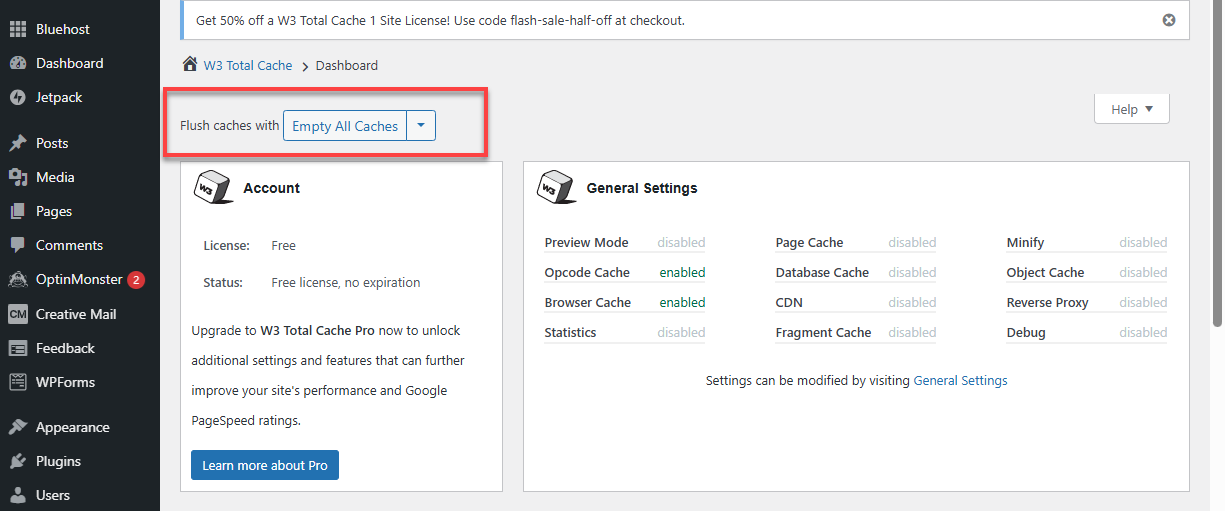
5. Clear All Caches
After enabling caching features, purge the cache to ensure the new settings take effect.
Go to:
Performance → Dashboard
Click:
Empty All Caches
This forces the plugin to rebuild optimized cache files.
Recommended W3 Total Cache Configuration Summary
| Feature | Setting |
|---|---|
| Opcode Cache | APC/APCu |
| Database Cache | Disk |
| Object Cache | Disk |
| Page Cache | Disk Enhanced |
| Browser Cache | Enabled |